Documentation Index
Fetch the complete documentation index at: https://docs.codeant.ai/llms.txt
Use this file to discover all available pages before exploring further.
Overview
CodeAnt AI’s DORA Metrics feature provides comprehensive insights into your software delivery performance using the four key metrics established by the DevOps Research and Assessment (DORA) team. These metrics help you measure, benchmark, and improve your engineering team’s effectiveness and delivery capabilities.
Metrics are computed from merged pull request data and automatically benchmarked against industry standards across four performance levels: Elite, High, Medium, and Low.
Supported Providers
DORA Metrics are available for the following Git providers:
| Provider | Cloud | Self-Hosted |
|---|
| GitHub | Yes | Yes |
| GitLab | Yes | Yes |
| Bitbucket | Yes | Yes (Data Center) |
| Azure DevOps | Yes | Yes |
Team Control
Teams in DORA Metrics are collections of repositories grouped together for aggregated metrics tracking. A team allows you to view combined DORA metrics across all repositories within it, or drill down into individual repository performance while preserving team-level configuration.
Creating a Team
Navigate to the DORA Metrics section and click Create Team to set up a new team.
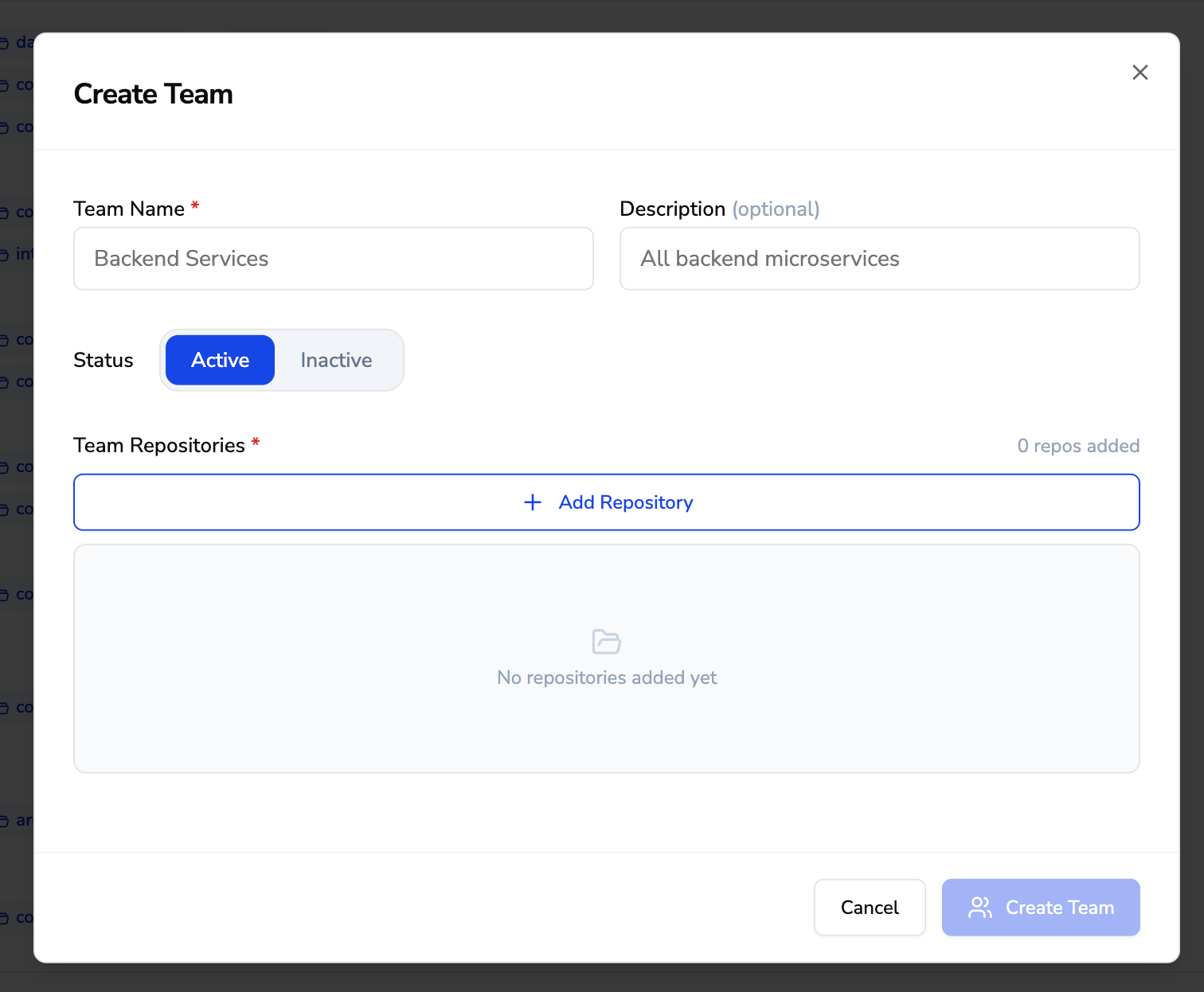 When creating a team, you configure the following fields:
| Field | Required | Description |
|---|
| Team Name | Yes | A descriptive name for the team (2-100 characters). Example: Backend Services, Platform Team. |
| Description | No | An optional description of the team’s purpose or scope. |
| Status | Yes | Set the team as Active or Inactive. Only active teams appear in the dashboard by default. |
| Team Repositories | Yes | List of repositories to include in the team. Click + Add Repository to add repos. Each added repository is configured with a Deployment Type and Prod Branch Patterns (see below). |
Adding a Repository
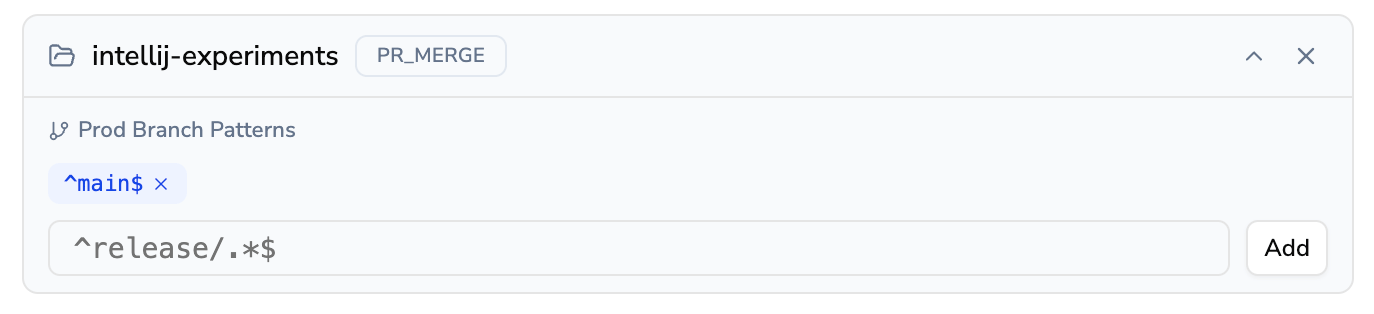
When you add a repository to a team, you configure how deployments are tracked for that repo:
| Field | Default | Description |
|---|
| Repository | — | The repository to add (e.g., intellij-experiments). |
| Deployment Type | PR_MERGE | Defines what counts as a deployment. Currently, only PR_MERGE is supported — a merged pull request into a production branch is treated as a deployment. |
| Prod Branch Patterns | ^main$ | Regex patterns that identify your production branches. Only PRs merged into branches matching these patterns are counted as deployments. You can add multiple patterns — for example, ^main$ and ^release/.*$ would track merges to both main and any release/* branch. Click Add to add each pattern. |
Managing Teams
The Team Controls page lists all your teams with their repositories, branch rules, and status at a glance.
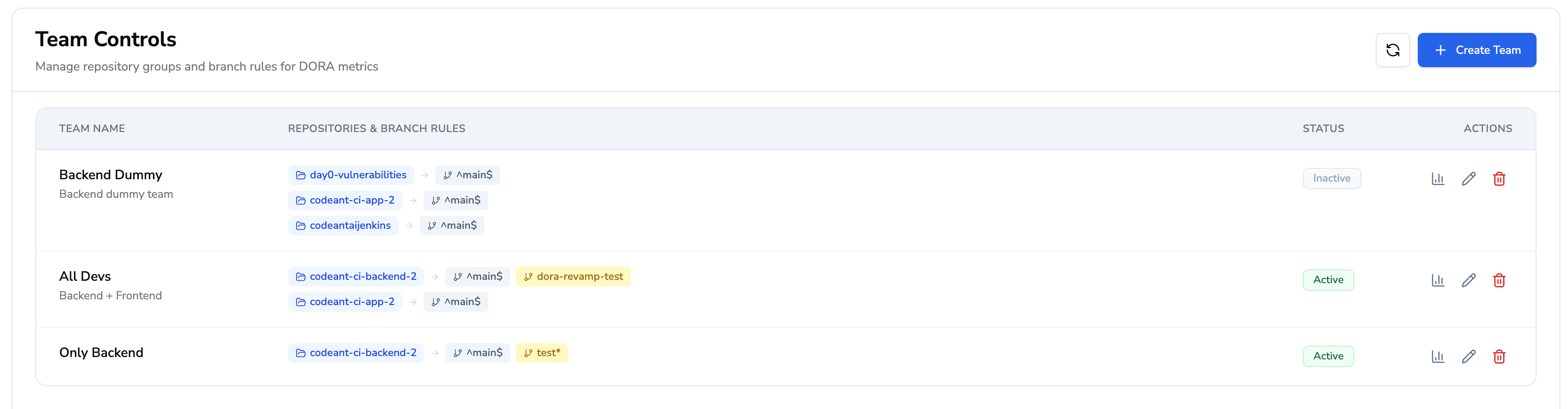 Each row shows:
- Team Name and description
- Repositories & Branch Rules — the repos in the team along with their configured production branch patterns
- Status — Active or Inactive
- Actions — View metrics, edit, or delete the team
From this page you can:
- Add repositories to an existing team
- Remove repositories from a team
- Update repository config — change the production branches or deployment type for a specific repository within the team
- Edit team details — update the team name, description, or active status
- Delete a team — delete the team
DORA Dashboard
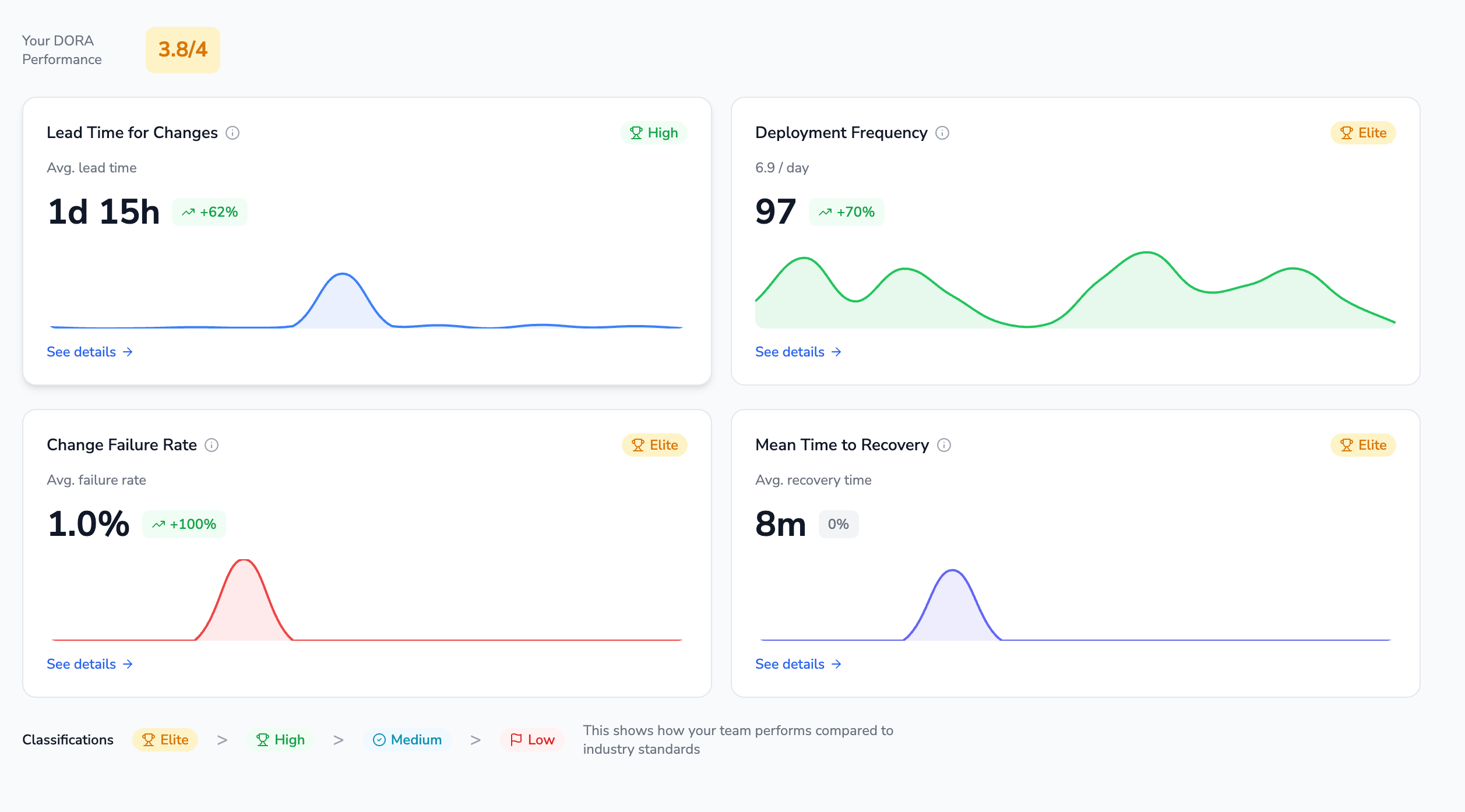
CodeAnt AI computes all four standard DORA metrics. Each metric is rated against industry benchmarks and includes trend comparison against the previous period of equal length.
Composite DORA Score
The overall DORA score is the average of all four individual metric ratings, converted to a numeric scale:
| Rating | Score |
|---|
| Elite | 4 |
| High | 3 |
| Medium | 2 |
| Low | 1 |
Deployment Frequency
What it measures: How often your team successfully deploys code to production.
A deployment is defined as a pull request merged into a production branch (as configured in the team’s repository settings).
How it’s calculated:
- Total deployments (merged PRs) in the selected date range
- Average deployments per day, per week, and per month
Performance Ratings:
| Rating | Threshold |
|---|
| Elite | 1 or more deployments per day |
| High | 1 or more deployments per week |
| Medium | 1 or more deployments per month |
| Low | Less than 1 deployment per month |
- Summary card showing total deployments, daily/weekly/monthly averages, and rating
- Daily trend chart showing deployment count per day over the selected period
- Trend comparison (up/down/flat) against the previous period
Lead Time for Changes
What it measures: The time from first commit to production deployment.
Lead time tracks the full lifecycle of a change, from when the first commit is made on a pull request branch to when that PR is merged into production.
How it’s calculated:
- Average and median lead time across all merged PRs in the period
Performance Ratings:
| Rating | Threshold |
|---|
| Elite | Less than 24 hours |
| High | Less than 1 week (168 hours) |
| Medium | Less than 30 days (720 hours) |
| Low | 30 days or more |
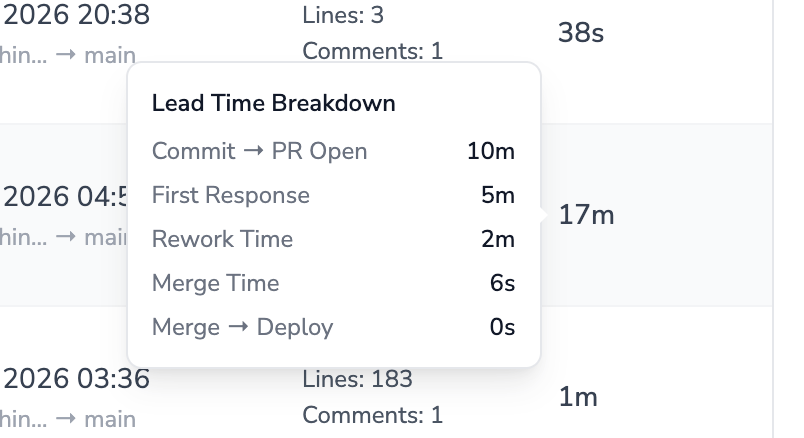
| Stage | Label in UI | Description |
|---|
| First Commit to Open | Commit → PR Open | Time between the earliest commit on the PR branch and the PR creation. Measures how long code sits before a PR is opened. |
| First Response Time | First Response | Time from the first commit to the first review comment or approval. Measures how quickly reviewers engage. |
| Rework Time | Rework Time | Time from the first review to the last approval. Captures the review iteration cycle — back-and-forth between reviewer feedback and author updates until final approval. |
| Merge Time | Merge Time | Time from the last approval to the PR being merged. Measures post-approval delay. |
| Merge to Deploy | Merge → Deploy | Time from PR merge to production deployment. For PR_MERGE deployment type, this is typically zero. |
- Less than 1 hour
- 1 hour to 24 hours
- 24 hours to 7 days
- 7 days to 30 days
- More than 30 days
Dashboard view:
- Summary card with average/median lead time and rating
- Daily trend chart showing average lead time per day
- Per-stage daily breakdown charts
- Distribution histogram
For Bitbucket and Azure DevOps, detailed review data (first response time, rework time, merge time) is loaded on-demand. Click Load review details on a specific PR in the drill-down to fetch and cache this data.
Change Failure Rate
What it measures: The percentage of deployments that cause failures in production.
Failures are identified by detecting revert PRs — pull requests that revert a previously merged change.
How it’s calculated:
(Number of revert PRs / Total merged PRs) × 100
Performance Ratings:
| Rating | Threshold |
|---|
| Elite | 0–5% |
| High | 5–10% |
| Medium | 10–15% |
| Low | Greater than 15% |
- Summary card with CFR percentage, total and failed deployment counts, and rating
- Daily trend chart showing number of failures per day
- List of failed PRs with links to the original reverted PR
Mean Time to Restore (MTTR)
What it measures: How quickly your team recovers from production failures.
MTTR is calculated from revert PRs — the time between when the original (failed) PR was merged and when the revert PR was merged.
How it’s calculated:
- Average and median recovery time across all incidents (revert PRs) in the period
- Only resolved incidents (those with a measurable recovery time) contribute to the average
Performance Ratings:
| Rating | Threshold |
|---|
| Elite | Less than 1 hour |
| High | Less than 24 hours |
| Medium | Less than 1 week (168 hours) |
| Low | 1 week or more |
- Summary card with average/median MTTR and rating
- Daily trend chart showing average recovery time per day
- List of incidents with recovery time details
Drill-Down Charts
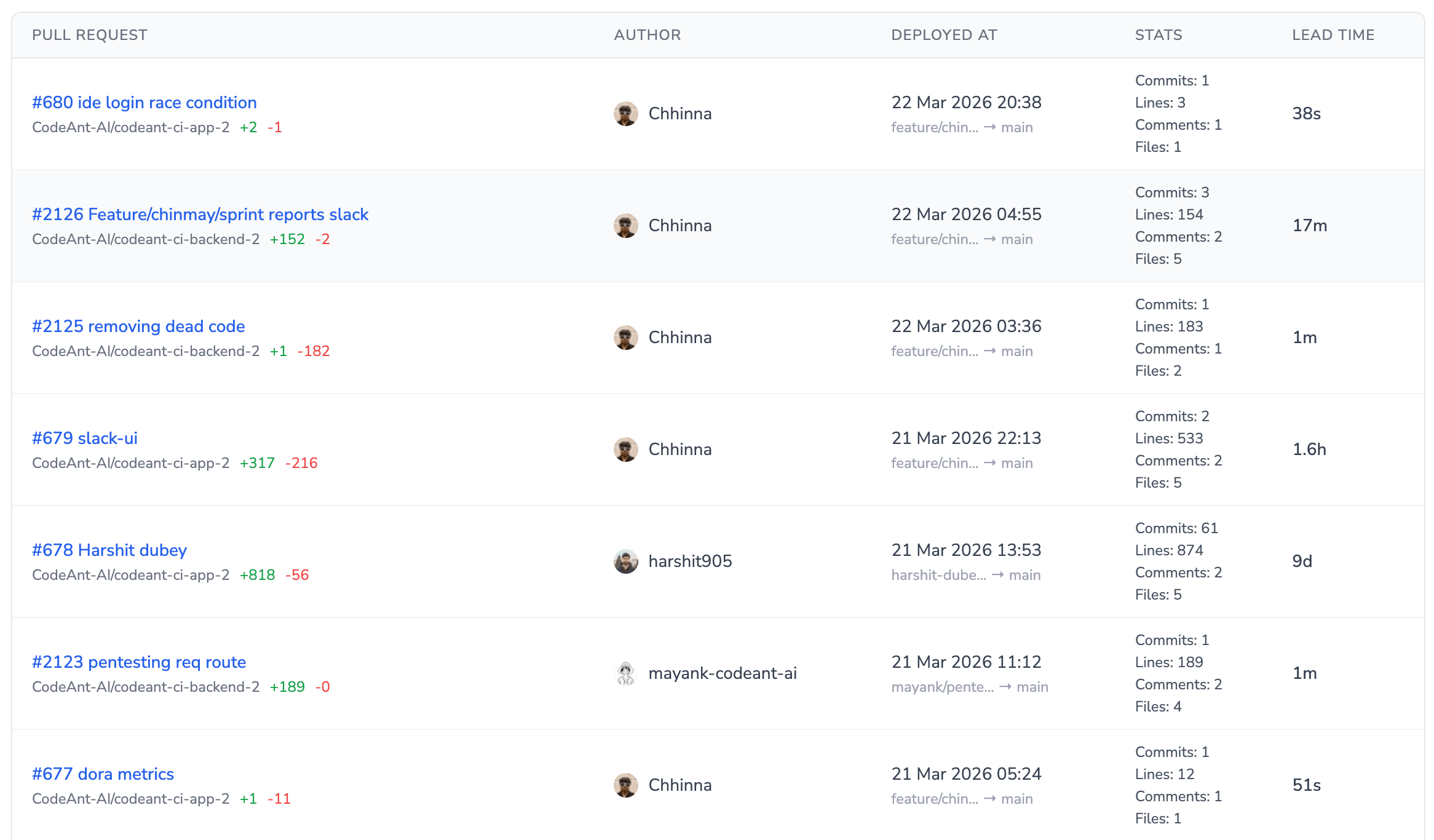
Each DORA metric provides a paginated drill-down view that lets you inspect individual pull requests and incidents. All drill-down tables support sorting and pagination.
PR Drill-Down (Lead Time)
View every PR merged during the selected period with its full lead time breakdown.
Columns displayed:
| Column | Description |
|---|
| Repository | Repository name |
| PR | PR number and title |
| Author | PR author with avatar |
| Base Branch | Target branch the PR was merged into |
| Merged At | Date and time the PR was merged |
| Additions / Deletions | Lines of code added and removed |
| Files Changed | Number of files modified |
| Commits | Number of commits in the PR |
| Reviews | Number of reviews received |
| Lead Time | Total lead time with expandable stage breakdown |
| Is Revert | Whether this PR is a revert |
 Hover over the lead time value on any PR to see the full stage breakdown:
Deployment Drill-Down
View all deployments (merged PRs to production branches) with lead time details.
Columns displayed:
| Column | Description |
|---|
| Repository | Repository name |
| PR | PR number and title |
| Author | PR author with avatar |
| Base Branch | Target production branch |
| Head Branch | Source branch |
| Merged At | Deployment timestamp |
| Additions / Deletions | Lines changed |
| Files Changed | Number of files modified |
| Commits | Number of commits |
| Reviews | Number of reviews |
| Lead Time (hours) | Total lead time in hours |
Failure Drill-Down
View all revert PRs that indicate production failures.
Columns displayed:
| Column | Description |
|---|
| Repository | Repository name |
| Revert PR | The revert PR number and title |
| Author | Who created the revert |
| Merged At | When the revert was merged |
| Reverted PR | The original PR that was reverted |
| Original PR Merged At | When the original (failed) PR was merged |
| Recovery Time | Time between original PR merge and revert PR merge |
Incident Drill-Down
View all production incidents with recovery time details. Incidents are detected as revert PRs.
Columns displayed:
| Column | Description |
|---|
| Repository | Repository name |
| Incident PR | The revert PR number and title |
| Author | Who resolved the incident |
| Merged At | When the incident was resolved |
| Reverted PR | The PR that caused the incident |
| Original PR Merged At | When the incident-causing PR was deployed |
| Recovery Time | Time to restore service (hours) |
Filters
DORA Metrics support filtering at multiple levels to help you focus on the data that matters.
Team-Level Filters
| Filter | Description |
|---|
| Team | Select a team to view aggregated metrics across all repositories in that team. |
| Date Range | Choose a start and end date for the analysis period. The previous period of the same length is automatically computed for trend comparison. |
Repo-Level Filters
| Filter | Description |
|---|
| Repository | When viewing a team, you can filter to a single repository within the team. This preserves the team’s production branch configuration for that repo. |
| Production Branches | When viewing a standalone repository (outside a team), you can specify custom production branch patterns to define what counts as a deployment. |
Drill-Down Filters
All drill-down views support:
| Filter | Description |
|---|
| Sort By | Choose the column to sort results by (e.g., merged_at, lead_time). |
| Sort Order | Ascending or descending order. |
| Pagination | Navigate through results with configurable page size (default: 25 items per page). |
Trend Comparison
Every metric automatically includes a trend comparison against the previous period. If you select a 30-day window (e.g., Feb 1 – Mar 2), the previous period is the 30 days immediately before (Jan 2 – Jan 31).
Trends show:
- Direction: Up, down, or flat
- Change percentage: How much the metric changed compared to the previous period
- Previous value: The metric value from the prior period
This helps you quickly understand whether your team’s delivery performance is improving, declining, or holding steady.
How It Works
- Connect Repositories: Link your Git repositories (GitHub, GitLab, Bitbucket, or Azure DevOps) to CodeAnt AI.
- Create a Team: Group repositories that belong to a team or service area.
- Configure Production Branches: Set regex patterns for each repository to define which branches represent production deployments.
- Automatic Data Collection: CodeAnt AI continuously collects and caches merged PR data from your repositories — no CI/CD pipeline integration required.
- View Metrics: Open the DORA Metrics dashboard, select your team and date range, and view all four metrics with ratings, trends, and drill-downs.
- Drill Down: Click into any metric to see the individual PRs, deployments, failures, or incidents that contribute to that metric.
- Track Improvement: Use trend comparison and historical data to track how your metrics evolve over time and benchmark against industry standards.

